Smart Plug Automation to Save Energy: Copyable Rules
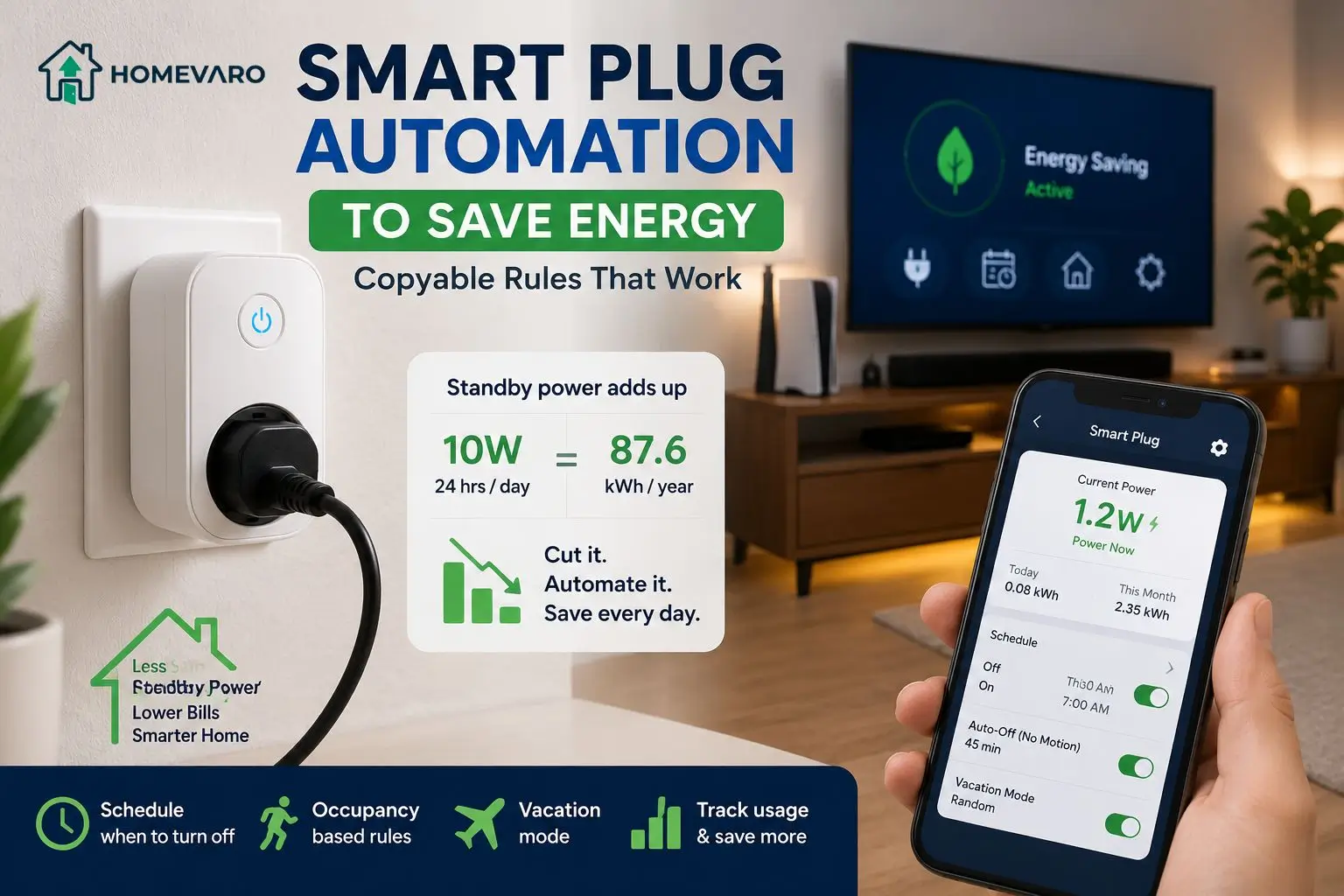
Smart plug automation saves energy by cutting the standby (phantom) power that devices draw even when you think they are off. You do it in three moves: use the plug’s built-in energy reading to find which devices keep pulling watts around the clock, put your two or three worst offenders on smart plugs, and set a schedule or occupancy rule that fully cuts their power when nobody is using them. A TV stack idling at 10 watts, 24 hours a day, wastes about 87.6 kilowatt-hours a year (10 W x 24 h x 365 / 1000). Standby is the easiest lever in the whole automation playbook, which is why it sits near the top of our guide on how smart home automation lowers your energy bill.
This is a how-to, not a shopping list. Every rule below is device-neutral, so it works whether you use one plug or ten.
What “standby” (phantom) power is, and why it adds up
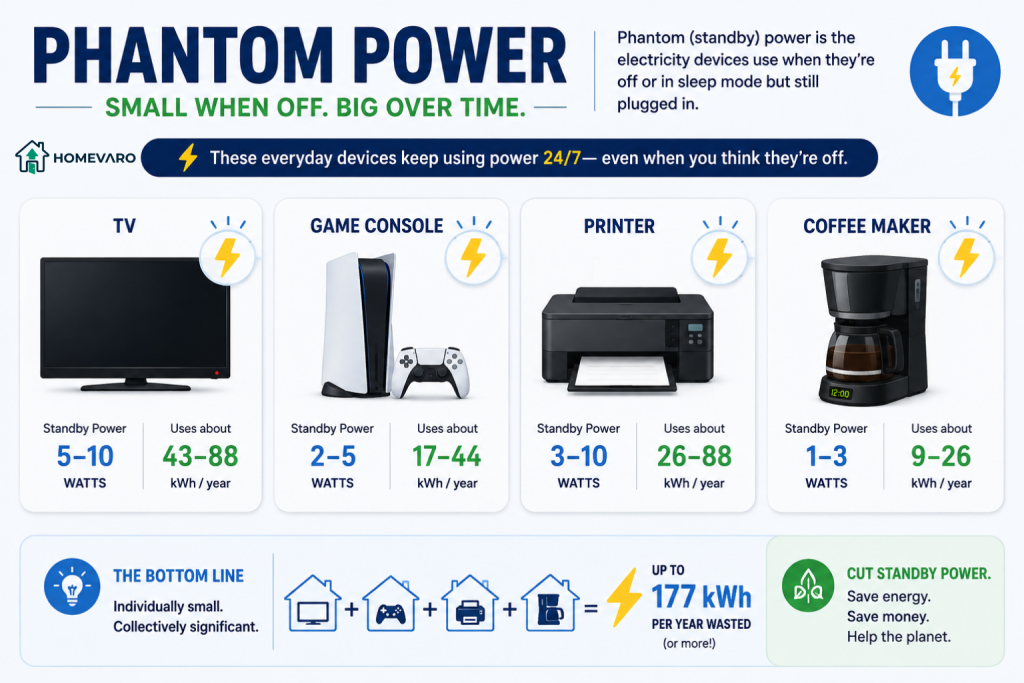
Standby power is the electricity a device uses while it is switched off or in sleep mode but still plugged in. It keeps a remote sensor awake, holds a clock, listens for a “wake” signal, or trickle-charges a battery. Individually, the draw is small. Collectively, it runs every hour of every day, which is what makes it matter.
As reported by the U.S. Department of Energy (energy.gov, accessed July 2026), standby power accounts for an estimated 5 to 10 percent of residential electricity use. Research from Lawrence Berkeley National Laboratory’s standby-power project points to televisions, set-top and cable boxes, and printers among the appliances with the largest standby losses. Note the pattern: these are not exotic devices. They are the ordinary electronics already sitting in your living room and office.
Here is the math that makes it concrete, with no dollar guess attached. A device that idles at 10 watts around the clock uses roughly 87.6 kWh per year. One that idles at 5 watts uses about 43.8 kWh. Multiply those watts across a full entertainment stack (TV, soundbar, console, streaming box, cable box) and standby stops being a rounding error. Apply your own electricity rate to the kWh figure and you will see exactly what it is worth on your bill.
Find your worst offenders first (let the plug tell you)
Do not automate blind. Most modern smart plugs include an energy monitor in their app that reports live wattage and a running kWh total. That reading is your triage tool, and it costs nothing extra to use.
Spend one week measuring before you commit to a schedule:
- Plug a suspect device into the smart plug and leave it in its normal “off but ready” state.
- Read the wattage in the app. Anything drawing more than a watt or two while idle is a candidate.
- Note the daily kWh the plug logs. A device that reads near zero when off is not worth automating; a device that holds 5, 10, or 20 watts all day is.
This step is the information gain most listicles skip. They hand you 25 “uses” and let you guess. Measuring first means your plugs land on the loads that actually move the needle, not the ones that feel wasteful but barely register.
The high-value targets, in priority order
If you only have two plugs, these are where they go. The list is ordered by how much idle load they typically hold, based on the standby research above and what a plug’s own meter will confirm in your home.
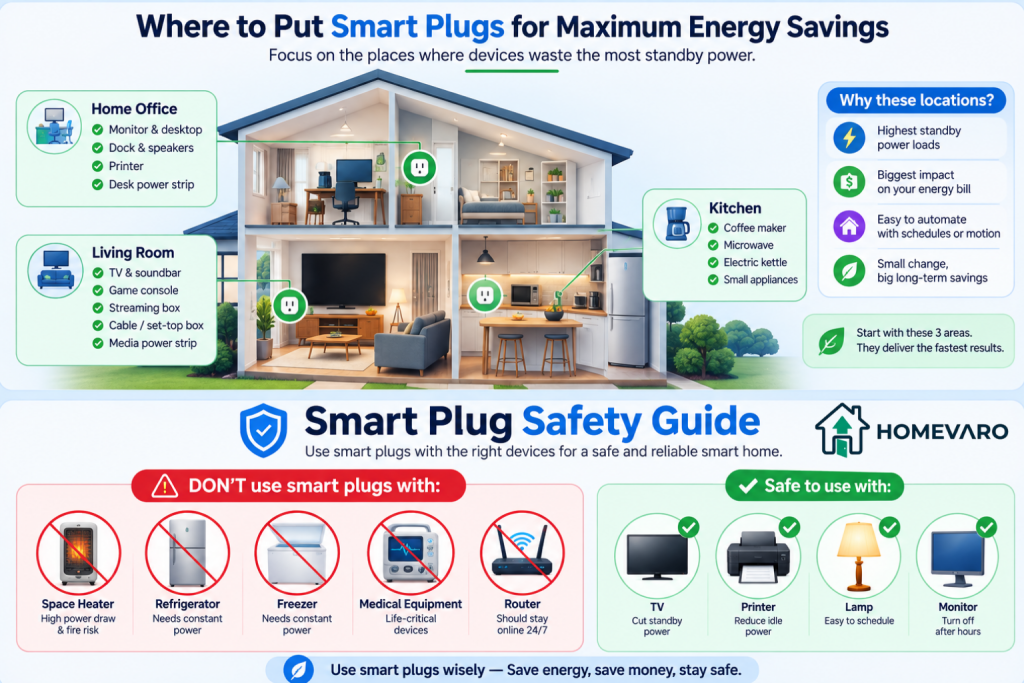
1. The entertainment stack. Your TV, soundbar, game console, streaming stick, and cable or set-top box sit in standby far more than they run. This is almost always the single biggest phantom-load cluster in a home, and it is the classic first target. One smart plug on the power strip that feeds the whole stack controls all of it at once.
2. The home-office stack. A monitor, dock, desktop, printer, and desk speakers keep sipping power overnight and on weekends. Printers in particular are a known standby offender. A single plug on the desk power strip cuts the lot after hours.
3. The kitchen counter. A coffee maker with a clock, a countertop microwave, an electric kettle, and small “instant-on” appliances hold small idle loads that run continuously. These are lower priority than the media and office stacks, but easy wins once those are handled.
4. Seasonal and occasional gear. A second fridge in the garage that is empty half the year, holiday lights, a rarely used printer, or a spare monitor. Anything used in bursts but left plugged in year-round is a clean candidate for an “off by default” plug.
Convenience uses (warming the coffee maker before your alarm, for example) are fine to add later. Keep the plugs energy-first while you set them up.
Copyable automations
Every automation follows the same plain-language shape: a trigger starts it, an optional condition decides whether it should run, and an action does the thing. Read them as recipes and translate into your own app.
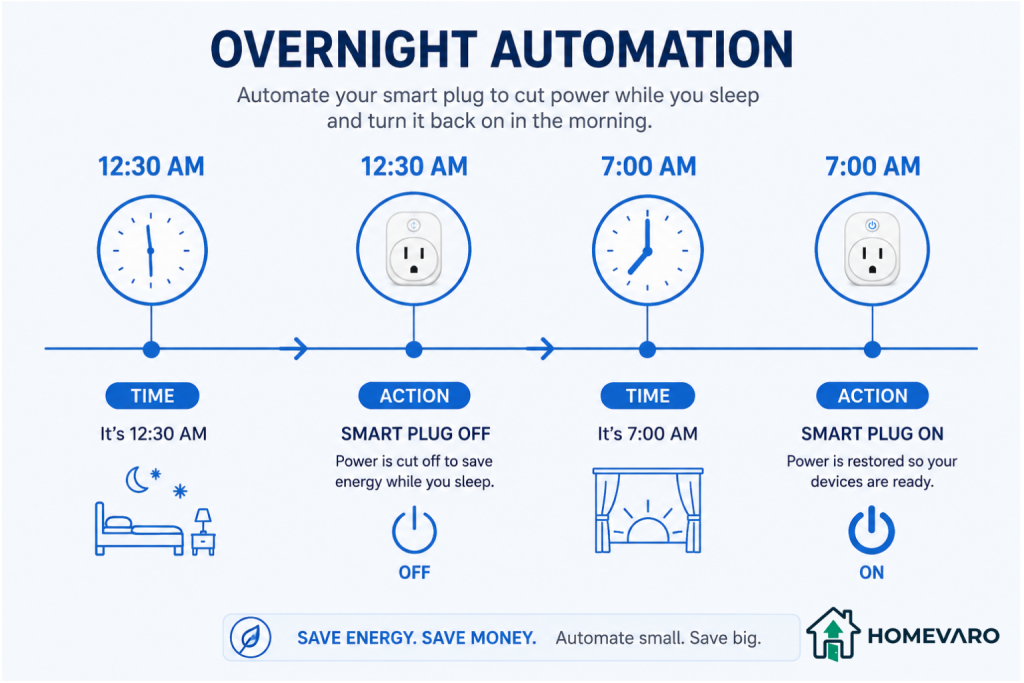
Overnight-off schedule (entertainment and office stacks)
The workhorse rule. It cuts standby during the hours you are guaranteed not to use the device.
- Trigger: Time is 12:30 a.m.
- Action: Turn the entertainment-stack plug OFF.
- Second trigger: Time is 7:00 a.m.
- Action: Turn the plug ON.
Set the office stack to switch off at, say, 7:00 p.m. and back on at 8:00 a.m. on weekdays. If a device needs a moment to boot before you use it, schedule the “on” time 10 to 15 minutes ahead of when you actually sit down.
Occupancy or time-of-day rules
Schedules assume a fixed routine. Occupancy rules adapt when your hours vary.
- Trigger: Everyone’s phone leaves home (geofence), OR a motion sensor reads no motion in the room for 45 minutes.
- Condition: It is between 9:00 a.m. and 4:00 p.m.
- Action: Turn the entertainment and office plugs OFF.
Pair it with voice control so you are never stuck: “turn on the TV” flips the plug back on outside the schedule without you touching an app. This keeps a keep-alive load like a Wi-Fi router or modem untouched, since those should stay on separate outlets that you never automate.
“Away” and vacation randomization
The same plugs that save energy can make an empty home look lived-in.
- Trigger: “Away” or “Vacation” mode is on.
- Action: Turn a lamp plug ON at sunset, OFF at 11:15 p.m., with a random offset of up to 20 minutes each day.
This overlaps with lighting scenes, which is why it is worth reading how we handle putting lamps on smart plugs versus using smart bulbs before you decide where a given light lives.
How many smart plugs do you actually need?
Fewer than the listicles imply. Because you are controlling whole power strips rather than single devices, two or three well-placed plugs usually capture the large majority of recoverable standby load:
- One on the entertainment stack.
- One on the home-office stack.
- A third, optional, on the kitchen counter or a seasonal device.
Buying a ten-pack and scattering plugs on already-efficient devices is how people spend money to save pennies. Measure, target the top offenders, and stop. You can always add one later when your energy readings point to a new culprit. If you are combining plugs with thermostats and lights, it is also worth confirming they work together across your ecosystem so an automation does not silently break.
What NOT to put on a smart plug (the safety line)
This is the section the convenience listicles gloss over, and it matters more than any savings tip.
- No space heaters or other high-draw resistive appliances. These pull heavy, continuous current and can approach or exceed a smart plug’s rated limit, which is a fire risk. Always check the wattage and amperage printed on the plug and keep high-draw heating appliances on a wall outlet.
- No refrigerators, freezers, or anything that must never lose power. An automation glitch or a plug that drops offline could spoil food or, worse, cut power to something critical.
- No medical equipment or life-safety devices. CPAP machines, powered medical devices, and the like belong on a reliable wall outlet, never on an automated schedule.
- No always-on networking gear. Your modem, router, and any smart-home hub need constant power for your automations to run at all.
The rule of thumb: smart plugs are for electronics that are safe to cut off completely and that you would not mind switching off at the wall. Anything with a motor that must run, a compressor, a heating element, or a health function stays off the plug.
FAQ
Do smart plugs themselves use much power?
A smart plug draws a small amount of standby power to keep its Wi-Fi radio awake, typically on the order of a watt or less. As long as the plug is switching off a device that idles at several watts or more, it saves far more than it consumes. On a device that already draws almost nothing when off, a plug will not pay for itself in energy, which is why measuring first matters.
Which appliances save the most when put on a smart plug?
The entertainment stack (TV, soundbar, console, streaming and cable boxes) is usually the biggest opportunity, followed by the home-office stack (monitor, dock, printer). U.S. Department of Energy and Lawrence Berkeley National Laboratory research both flag televisions, set-top boxes, and printers as leading standby offenders. Your plug’s energy monitor will confirm your own worst cases.
Can I put a space heater or a fridge on a smart plug?
No. Space heaters and similar high-draw appliances can approach or exceed a smart plug’s rated current limit, which is a fire hazard, so keep them on a wall outlet and check the plug’s printed rating. A fridge or freezer should never be automated either, because an accidental “off” could spoil food or damage the compressor.
How many smart plugs should a beginner start with?
Start with two: one on the entertainment stack and one on the home-office stack. Those two strips hold most of a typical home’s recoverable standby load. Add a third only after your energy readings point to another device worth automating.
Do smart plugs work without Wi-Fi or when the internet is down?
It depends on the plug. Most retain their last state and their physical button, so a plug set to “on” stays on and you can still press it by hand. Scheduled automations that run locally on the plug or a hub often keep working, but cloud-only schedules and voice control usually pause until the connection returns. Keep routers and modems on separate, un-automated outlets so your network can recover on its own.